
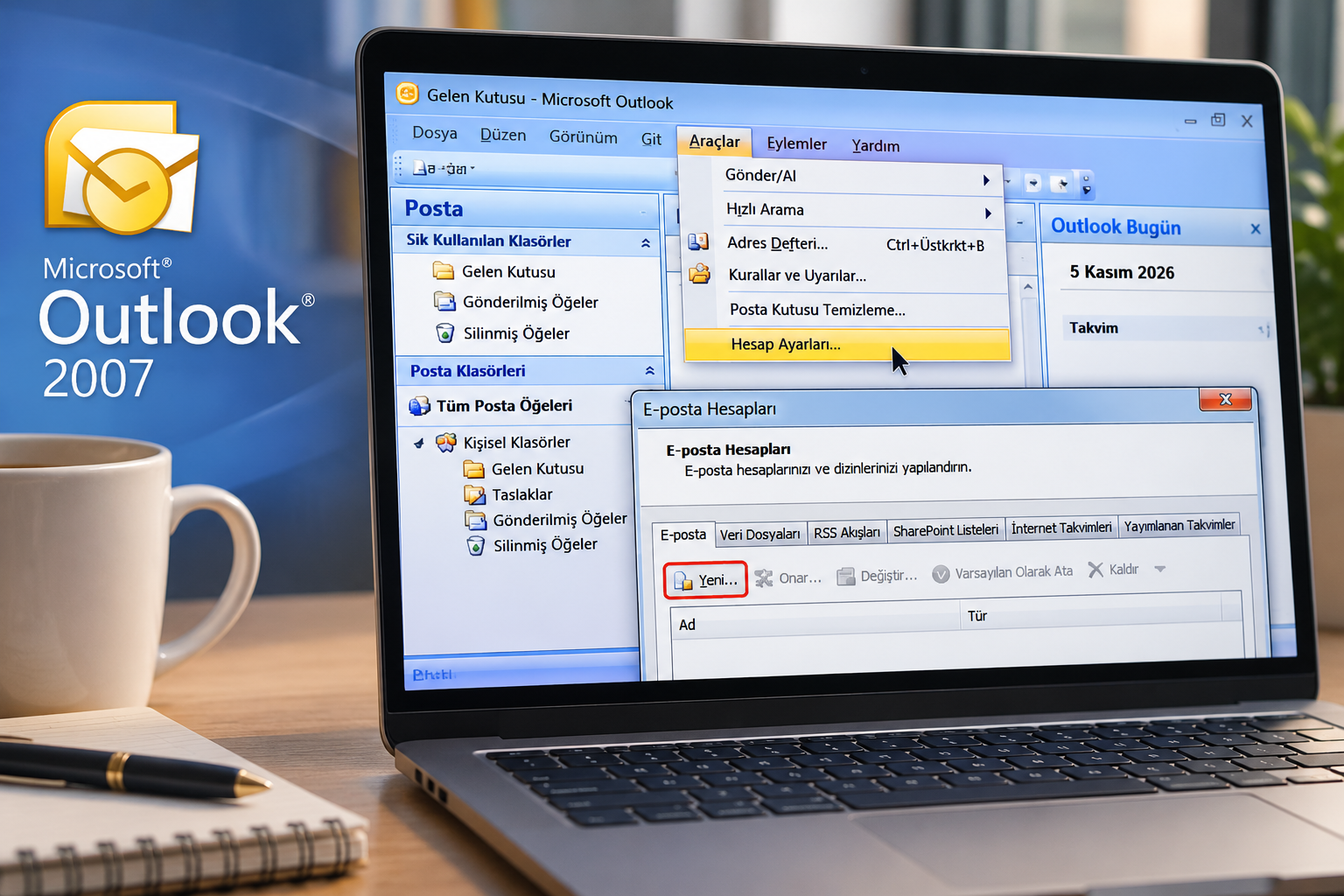
1.Click the Account Settings option from the Tools menu at the top of Microsoft Outlook 2007.

2.After clicking Account Settings, the E-mail Accounts window will open. Click the New... button located just below the E-mail tab. In the Add New E-mail Account window, select Manually configure server settings or additional server types and click Next.

3.In the next window, select Internet E-mail and click Next.

4.In the Internet E-mail Settings window, enter your e-mail account information in the relevant fields, as shown in the example image below. Then click the More Settings button.

5.In the Advanced tab, locate the Outgoing Server (SMTP) section. Change the port number from 25 to 587 and click OK.

5.1. In the Internet E-mail Settings window, open the Outgoing Server tab. Select the option My outgoing server (SMTP) requires authentication and click OK.

6.After clicking OK, you will return to the account settings page. Finally, click Next and then Finish to complete the setup of your e-mail account in Microsoft Outlook 2007.

IMPORTANT NOTE: If you are configuring the primary e-mail address specified in your account information e-mail, enter only the username provided to you, not the full e-mail address.
IMPORTANT NOTE: If the Remember Password checkbox is selected, you will not be asked to enter your password again.
